What is Visual Studio Code?
- VS code is a free code editor
- We will use this tool all semester to work through assignments, projects, and applications written in Python
Why Use Visual Studio Code?
- VS Code is fast!
- Multi-instant, plethora of extensions, easy navigation, debug…fast!
- VS Code is cross-platform
- Compatible with Windows, Mac, Linux
- Debugger included
- Rich intellisense and autocomplete
- Refactoring features to tweak and improve existing code
- Terminal and Source Control built-in
- Includes Agentic Mode and MCP Servers
Where Can I Get Visual Studio Code?
-
https://code.visualstudio.com/download
- Note: There is a Mac version!
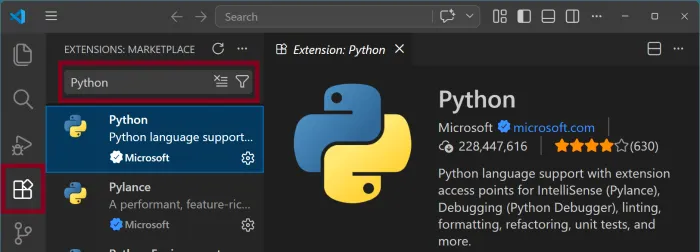
- Once VS Code is installed and running, open the Extensions Marketplace and search for “python” to install the official Microsoft Python Extension.
How to Use VS Code?
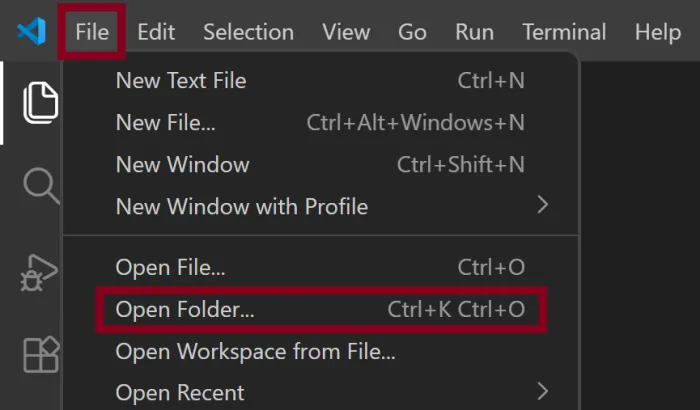
- Open the folder that will contain your file(s) and navigate to the folder you created using File Explorer.
File, Open Folder
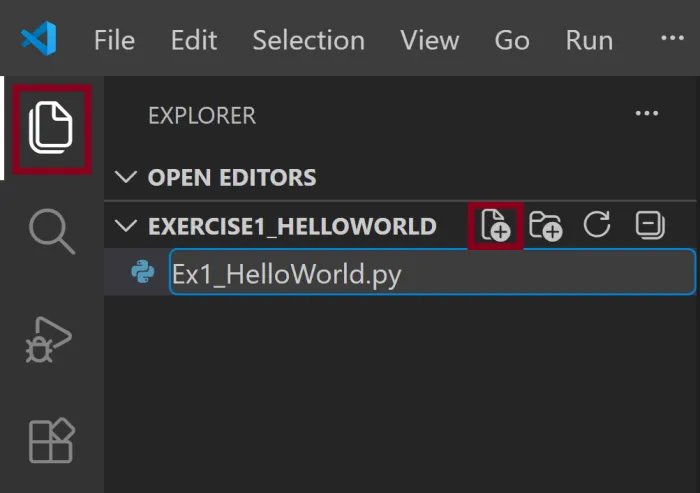
- Click the Explorer icon in VS Code to show any file(s) in the folder. To create a new Python file, click the New File icon in the Explorer pane and name the file with a .py extension:
- Once the file is created, start entering your Python code:

- To save your work, enable Auto Save:
File, Auto Save, to automatically save your changes to the file
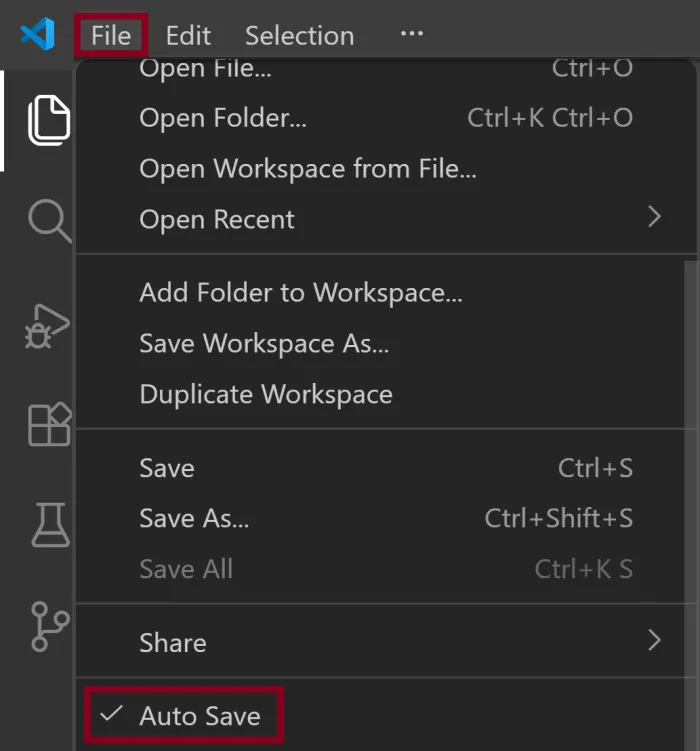
Notice the gray circle next to the file name no longer appears, indicating that all changes to the file are saved.