Building a Dash App for Interactive User Interfaces:
- Next, let’s look at how to develop a Dash app where a user selects a color from a dropdown menu and the app displays the selected color.
Dash Components:
- Dash Core Component: Sliders, dropdown lists, radio items, tabs, textareas, etc. are all components that we can add to a Dash app. Let’s take a look at how to add a dropdown. Documentation about the dropdown component properties can be found here.
- A list of Core Components can be found in the Dash documentation.
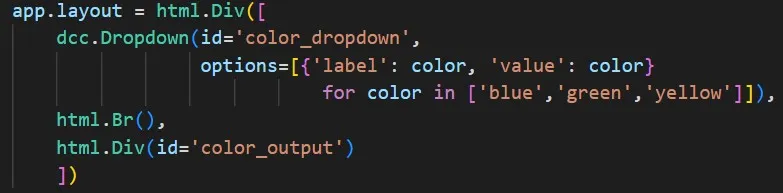
- For now we can use its options attribute to set the options that the user can select from. This property is set by using a list of dictionaries, one for each option, where label is what the user will see, and value is the actual value that we will be dealing with:
app.py
python
1from dash import dash, html, dcc, Output, Input
2
3app = dash.Dash(__name__)
4
5app.layout = html.Div([
6    dcc.Dropdown(options=[{'label': color, 'value': color}
7                            for color in ['blue','green','yellow']]),
8    html.Br(),
9    html.Div()
10    ])
11
12if __name__ == '__main__':
13    app.run(debug=True)
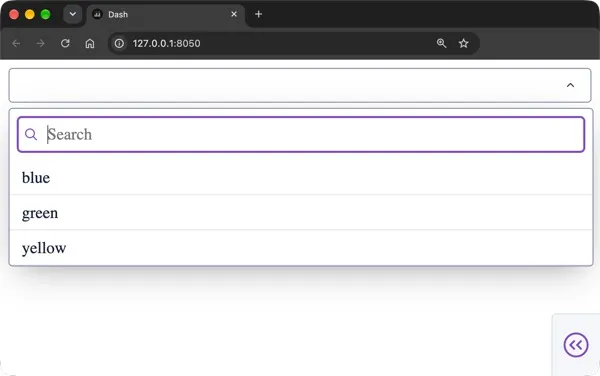
Output:
Creating a Standalone Pure Python Function:
- This function takes the value selected in the dropdown, processes it, and returns a result that updates what the user sees.
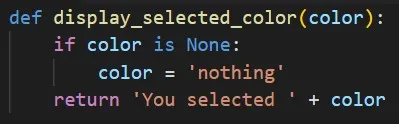
- If the user doesn’t input anything, then the color variable is set to ‘nothing’, and the function returns ‘You selected ’ +
, which is whatever the value color takes. - For this function, the dropdown will provide Input. Then, after processing it, the return value of the function, that is its Output, will influence what to display in the currently empty html.Div right underneath the dropdown.
The id Parameter of Dash Components:
- Every Dash component has an id parameter that you can easily set in order to uniquely identify it. Descriptive and explicit names should therefore be used.
- Applying this to our currently isolated app, we set a descriptive name to each id parameter.