In-Class Activity 1: Intro to Django:
Objective: Discover how to create a project by installing Django, creating a database and starting the development server.
Description: Build a Django project and look at what it creates.
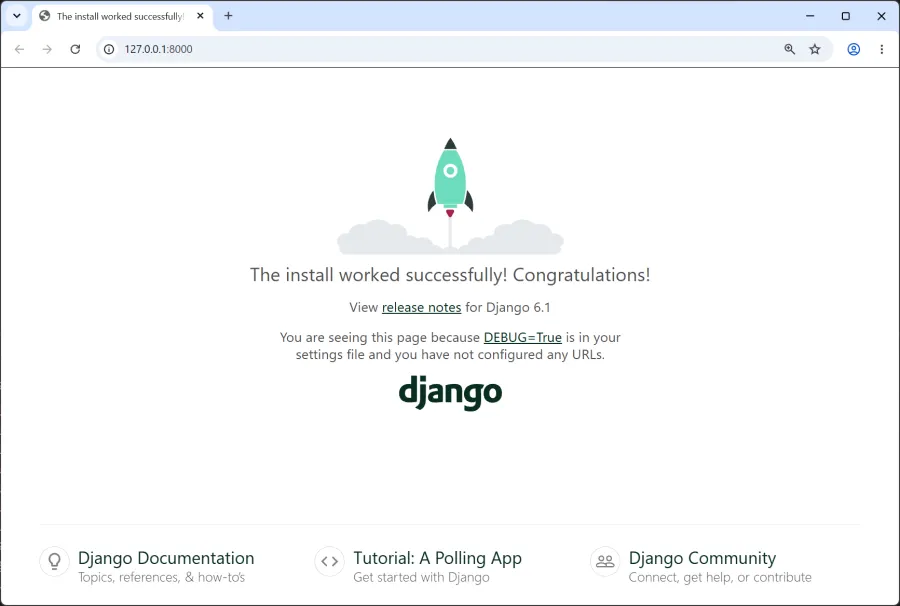
- Create a new folder named, Activity1-Django_Intro. After the activity is completed, take a screenshot matching the solution image below and submit it to the first quiz question on Canvas.
- After installing Django, create a new project by issuing the following command in the terminal.
1django-admin startproject code_journal .- Don’t forget the dot (period) at the end of the command, which tells Django to create the project in the current directory!!
- In the
code_journalproject, create a database. - Make sure the project is set up correctly by referencing the structure below. Your project should contain the following files and directories:
Activity1-Django_Intro/
      code_journal/
          __init__.py
          asgi.py
          settings.py
          urls.py
          wsgi.py
      db.sqlite3
      manage.py
- Ensure the Django project is running locally and confirm it is set up correctly by opening Google Chrome and entering the URL http://localhost:8000. You should see a web page similar to the below: