A Brief Recap…:
- In the example prior, we developed a Dash app where a user selected a color from a dropdown menu and the app displayed the selected color.
Plotting Using a Real Dataset:
- Now, we will let the user select a year from a dropdown list, and have the app display the top 20 countries by population for the selected year.
- Our dataset, PovStatsData.csv, contains columns from the countries and their codes, the indicators and their codes, and a column for each year from 1974 to 2019.
- First we import pandas on line 3 and use it to instantiate a DataFrame object, and assign it to the data_df variable on line 7.
- The query() method then filters the DataFrame to only include rows where the Indicator Name column is equal to Population, total, and assigns the resulting DataFrame to the population_df variable.
app.py
python
1from dash import dash, html, dcc, Output, Input
2import plotly.graph_objects as go
3import pandas as pd
4
5app = dash.Dash(__name__)
6
7data_df = pd.read_csv('PovStatsData.csv')
8
9population_df = data_df.query("`Indicator Name` == 'Population, total'")
10print(population_df.head())
Output: The first few rows of the resulting DataFrame can be displayed as follows:
1    Country Name     Indicator Name        1974  ...        2018  2019
227   Afghanistan  Population, total  12412950.0  ...  37172386.0   NaN
391       Albania  Population, total   2350124.0  ...   2866376.0   NaN
4155      Algeria  Population, total  16149025.0  ...  42228429.0   NaN
5219       Angola  Population, total   6761380.0  ...  30809762.0   NaN
6283    Argentina  Population, total  25462302.0  ...  44494502.0   NaN
7
8[5 rows x 50 columns]- Then, if we create a dynamic year variable on line 12, and a year_df variable on line 13 containing the countries column along with the selected year’s column, we can sort those values in descending order and extract the first 20:
- With a year_df variable containing two sorted columns, we can very easily create a bar chart and add a dynamic title, containing the year, as a variable.
app.py
python
11# ---snip---
12year = '2010'
13year_df = population_df[['Country Name', year]]
14year_df = year_df.sort_values(by = year, ascending = False)[:20]
15trace = go.Bar(x = year_df['Country Name'],
16               y = year_df[year])
17layout = go.Layout(title = f'Top twenty countries by population - {year}')
18fig = go.Figure(data = trace, layout = layout)
19fig.show(renderer="browser")
Output:
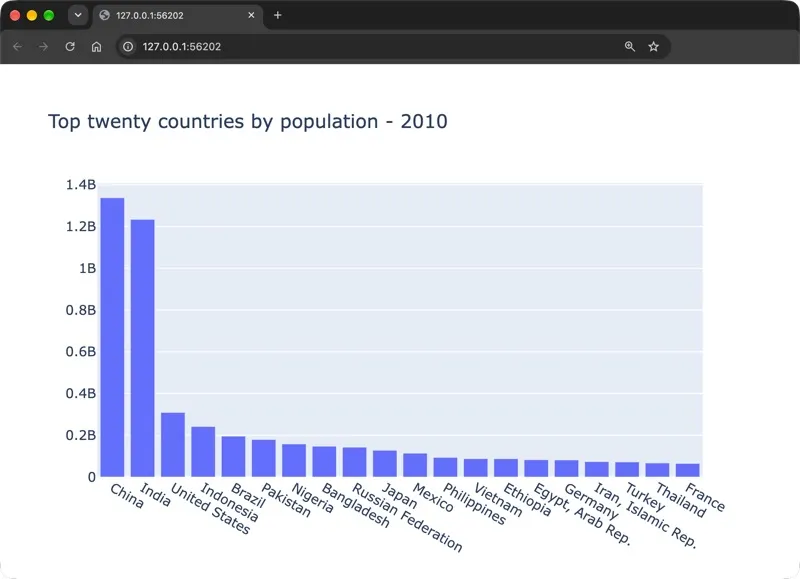
- Note 2010 is an arbitrary year. We would actually want the user to be able to select the year they want from the ones that are available in the dataset.
- The code that can produce the bar chart only requires a def statement and some indentation to become a function!
- For example, the function defined on line 13 below produces an identical chart to the one that we just produced, but for the given year argument.
app.py
python
12# year = '2010'
13def plot_countries_by_population(year):
14    year_df = population_df[['Country Name', year]]
15    year_df = year_df.sort_values(by = year, ascending = False)[:20]
16    trace = go.Bar(x = year_df['Country Name'],
17                   y = year_df[year])
18    layout = go.Layout(title = f'Top twenty countries by population - {year}')
19    fig = go.Figure(data = trace, layout = layout)
20    fig.show(renderer="browser")
21plot_countries_by_population('2010')
Identical Chart Output: