In-Class Activity 3: The Django Shell:
Objective: Define and create a new model (the Entry model) and connect it to an existing model (the Topic model) to form a one-to-many relationship, meaning many entries can be associated with one topic. Use the Groq API to populate the database with entries.
Description: To record into our code journal project what topics we’ve been learning about (e.g., Data_Types and Lists) we need to define a model for the kinds of entries we can make in the journal. In other words, each entry needs to be associated with a particular topic.
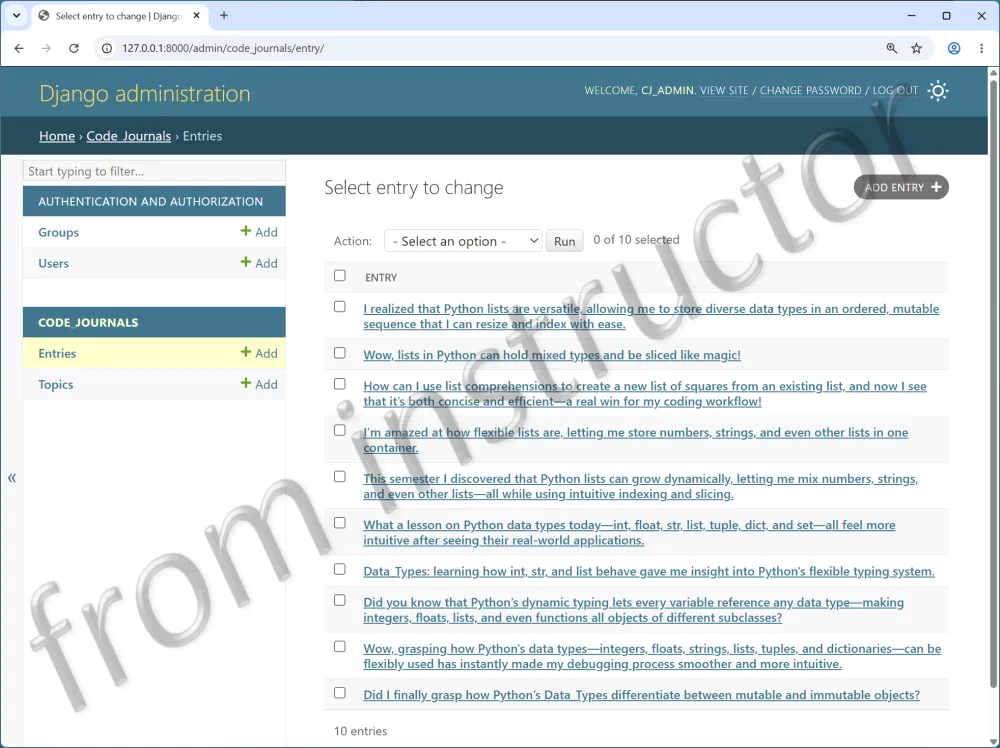
- Make a copy of your Activity2 folder and name the folder Activity3-DjangoShell_DB. After the activity is completed, take a screenshot matching the solution image below and submit it to the first quiz question on Canvas.
- Navigate to the directory that contains manage.py and open the folder in VS code.
- In the models.py file, define a second model,
Entrywith 3 fields (attributes)topic,textanddate_added.- The
topicattribute should have a ForeignKey datatype - The
textattribute should have a TextField datatype. - The
date_addedattribute should have a DateTimeField datatype.
- The
- Nest the Meta class inside the
Entryclass so that multiple entries will appear correctly - Define another
__str(self)__function to show the text of the entry. - After migrating the database, register the
Entrymodel with the Admin Site (in the admin.py file) - Use Groq to create your entries. In the activity root folder (the same folder as manage.py), create a file named
populate_entries.pyand build the script by following the Add Entries with Groq page.- Paste in your own Groq API key, then run the script with python populate_entries.py.
- The script should create 5 entries for Data_Types and 5 entries for Lists. Only run it once.
- Login to the admin site (http://localhost:8000/admin) and confirm your entries were created. To do so, click the Entries link.
- You should see 10 entries listed. Click an entry to confirm it is connected to the correct topic.