The new_topic() View Function:
- The new_topic() function needs to handle two different situations:
- Request for the new_topic page (in which case it should show a blank form) and the processing of any data submitted in the form.
- Redirect the user back to the topics page
views.py
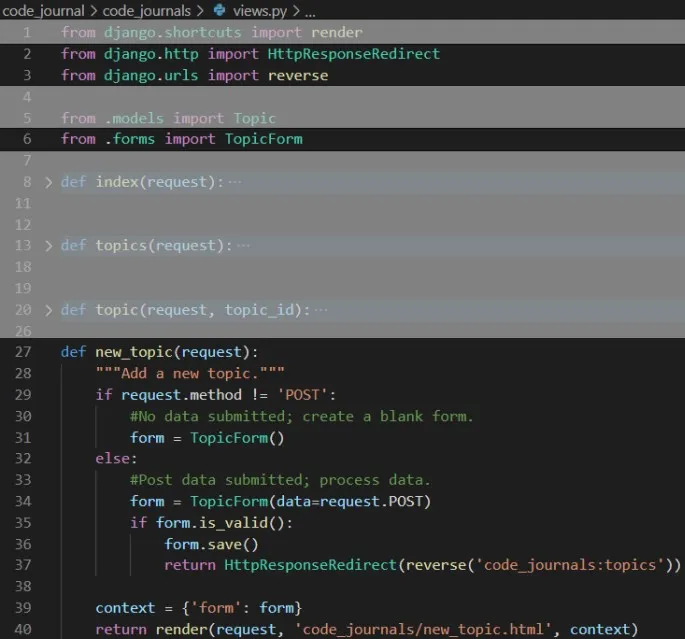
- In summary, we import the class HttpResponseRedirect, which we’ll use to redirect the reader back to the topics page after they submit their topic. The reverse() function determines the URL from a named URL pattern, meaning that Django will generate the URL when the page is requested. We also import the form, TopicForm which we previously wrote.
GET and POST Requests:
- The two main types of requests you’ll use when building web apps are GET requests and POST requests.
- You use GET requests for pages that only read data from the server.
- You use POST requests when the user needs to submit information through a form. (We’ll specify the POST method for processing all of our forms.)
- Line 29 determines whether the request method is GET or POST.
- In line 31, we make an instance of TopicForm, store it in the variable form, and send the form to the template in the context dictionary.
- If the request method is POST, the else block runs and processes the data submitted in the form. Therefore, in line 34, we make an instance of TopicForm and pass it the data entered by the user, stored in request.Post. The form object that’s returned contains the information submitted by the user.
- In line 35, the is_valid() method checks that all required fields have been filled in and that the data entered in matches the field types expected.
- In line 36, we call save() which writes the data from the form to the database. Once saved, we leave the this page and use reverse() to get the URL for the topics page and pass the URL to HttpResponseRedirect() which redirects the browser to the topics page.
The new_topic Template:
- Now we make a new template called new_topic.html to display the form we just created.
new_topic.html
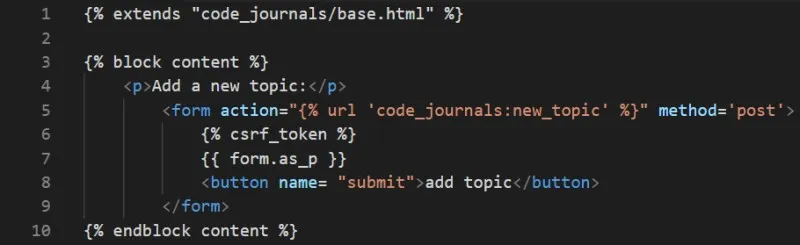
- In line 5 we define an HTML form. The action argument tells the server where to send the data submitted in the form. In this case, we send it back to the view function new_topic(). The method argument tells the browser to submit the data as a POST request.
- In line 6, we thwart against cross-site request forgery attacks using the Django template tag.
- In line 7, we display the form, using the template variable. The as_p is a modifier that renders all the form elements in paragraph format, providing a simple way to display the form neatly.
Linking to the new_topic Page:
- Next, we include a link to the new_topic page on the topics page:
topics.html
html
1{% extends "code_journals/base.html" %}
2
3{% block content %}
4
5<p>Topics</p>
6
7<ul>
8    {% for topic in topics %}
9        <li>
10            <a href="{% url 'code_journals:topic' topic.id %}">{{ topic }}</a>
11        </li>
12    {% empty %}
13        <li>No topics have been added yet.</li>
14    {% endfor %}
15
16</ul>
17
18<a href="{% url 'code_journals:new_topic' %}">Add a new topic:</a>
19
20{% endblock content %}- Place the link after the list of existing topics on line 18.