In-Class Activity 9: Form Editing and Deleting Topics:
Objective: Learn how to write a function and generate form data to edit existing entries. Write an additional function to delete a topic.
Description: Create a view function to allow users to edit entries on a form that have already been added. Also, write an additional view function to allow users to remove a specific topic.
- Make a copy of your Activity8 folder and name the folder Activity9-FormEdit-TopicDelete. After the activity is completed, take three screenshots matching the solution images below and submit it to the first quiz question on Canvas.
- Navigate to the directory that contains manage.py and open the folder in VS code.
Part 1: Editing Existing Entries
- Append the urls.py file (code_journals/urls.py) to add an additional URL pattern for the edit_entry page. This pattern should send requests to the view function
edit_entry(). - Define a new view function named,
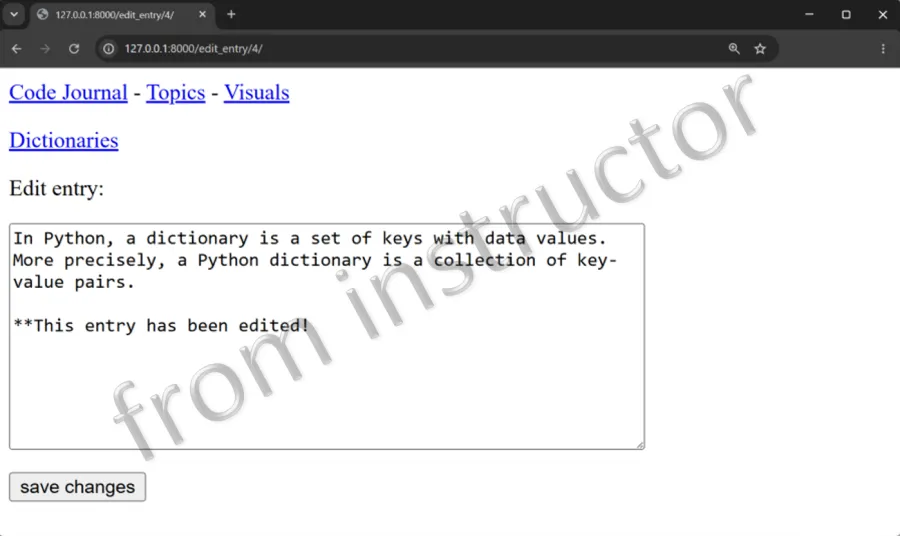
edit_entry. The function should return a form for editing the entry when it receives a GET request. Alternatively, when a POST request is received, the revised entry text should save to the database. - Create a new template called edit_entry.html to display the form. Ensure that the template extends base.html.
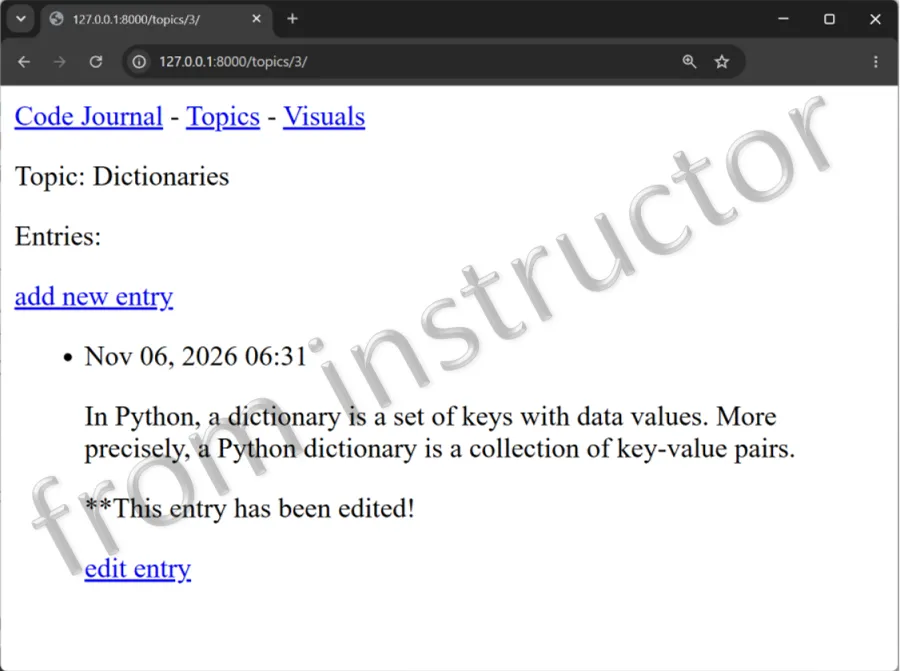
- Next, edit the topic template (topic.html) to include a link to the edit_entry page for each entry on the topic page.
- The first screen capture below shows what the topic page should look like with the edit entry link added. Once the user clicks the link, the edit entry page should appear, as shown below in the second screen capture.
Part 2: Deleting a Topic
- Append the urls.py file (code_journals/urls.py) to add an additional URL pattern for deleting a topic. This pattern should send requests to the view function
delete(). - Add a new view function named,
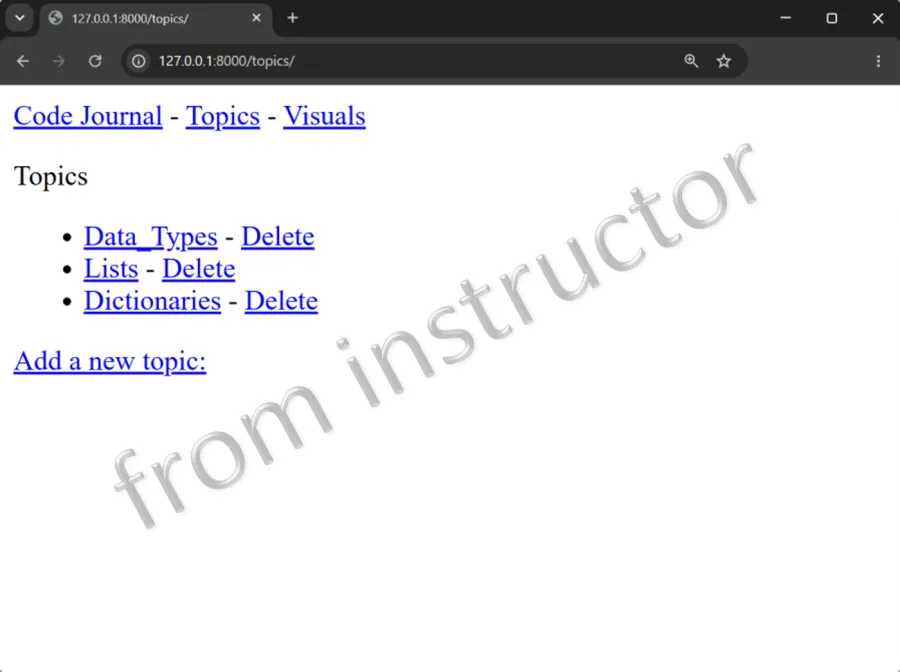
delete. The function should get the request and the topic_id and then return a redirect to the topics URL pattern using the reverse function. - Finally, edit the topics template (topics.html) to include a link, allowing a user to delete a topic of their choosing.
- The below screen capture shows the updated topics page with links displayed next to each topic, allowing users to remove the topic of their choice. Note for the activity you don’t have to delete a topic, but the functionality should work.