Project 3:
Project Specification: Finish building the Budget App. Build a form that allows users to add new entries. Create a donut and bar chart to show the total amounts for each transaction type. Also, allow the user to delete existing entries. Style the budget app using django-bootstrap5. Finally, add a “jumbotron” style to the application home page.
- Make a copy of your Project2-Django folder and name the folder Project3-Django.
- Navigate to the directory that contains manage.py and open the folder in VS code.
-
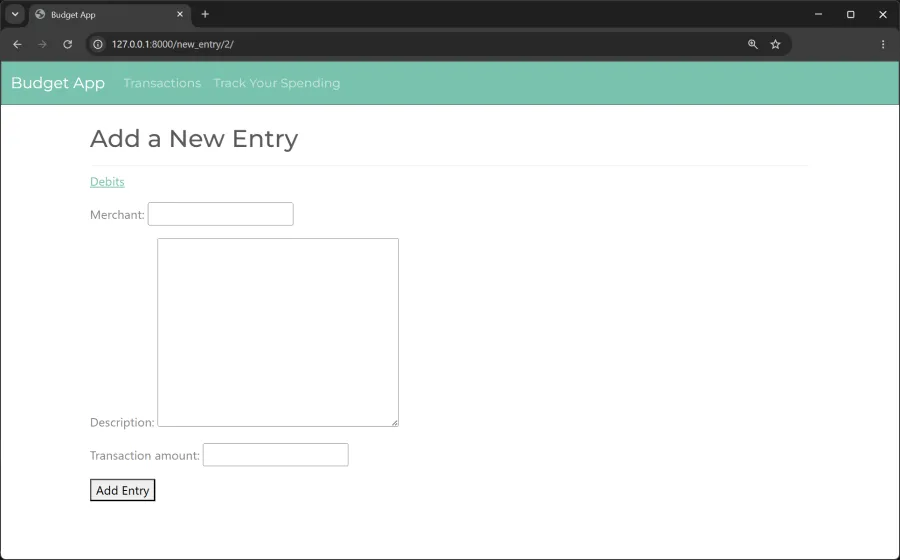
(30 points) Start by creating a form that handles GET and POST requests that allow users to add new entries.
- a. To do so, create your first form in the file forms.py.
- i. Import the model we need to work with,
Entry. - ii. Define the class called
EntryForm, which inherits from forms.ModelForm. Within the nested Meta class, build the form from theEntrymodel and include the following fields:merchant,descriptionandtransaction_amount. Make sure the labels are displayed for each field.
- i. Import the model we need to work with,
- b. Append the urls.py file (budget_app\urls.py) to add an additional URL pattern for the new_entry page. This pattern should send requests to the view function
new_entry(). - c. Define a new view function,
new_entry(), to handle GET and POST requests for the entry form in the views.py file. In the file, make sure to importEntryForm. - d. Create a new template called new_entry.html to display the form. Ensure that the template extends base.html. Next, edit the transaction template (transaction.html) by adding a hyperlink to the new_entry page.
- a. To do so, create your first form in the file forms.py.
-
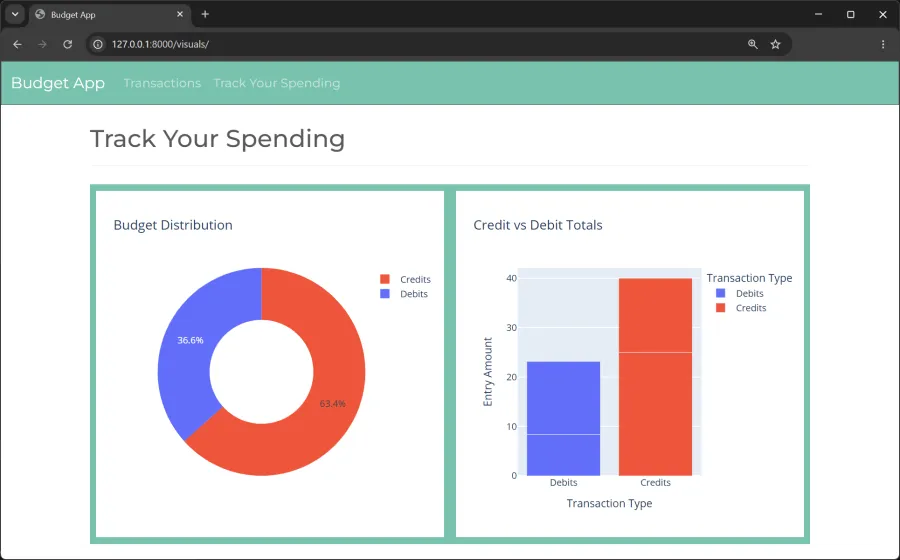
(30 points) Create a donut and bar chart to show the total amounts for each transaction type.
- a. Append the urls.py file (budget_app\urls.py) to add an additional URL pattern for displaying the two charts. This pattern should send requests to the view function,
visuals(). - b. Define a new view function named
visuals(). This function should reference the Entry class and use a list comprehension to construct a list of tuples containing each transaction type and its corresponding transaction amount. Then, using plotly express and pandas, create a donut and bar chart chart showing the total transaction amounts by transaction type. - c. Create a new template called visuals.html to display both charts inside a table. Style the table using Bootswatch’s Minty theme by applying the table table-hover style to the < table> element. Ensure that the template extends base.html.
- d. Then, modify the base.html file by adding a hyperlink to the visuals page on the navigation bar.
- a. Append the urls.py file (budget_app\urls.py) to add an additional URL pattern for displaying the two charts. This pattern should send requests to the view function,
-
(20 points) Allow users to delete existing entries.
- a. Append the urls.py file (budget_app\urls.py) to add an additional URL pattern for deleting an entry. This pattern should send requests to the view function,
delete_entry(). - b. Define a new view function named
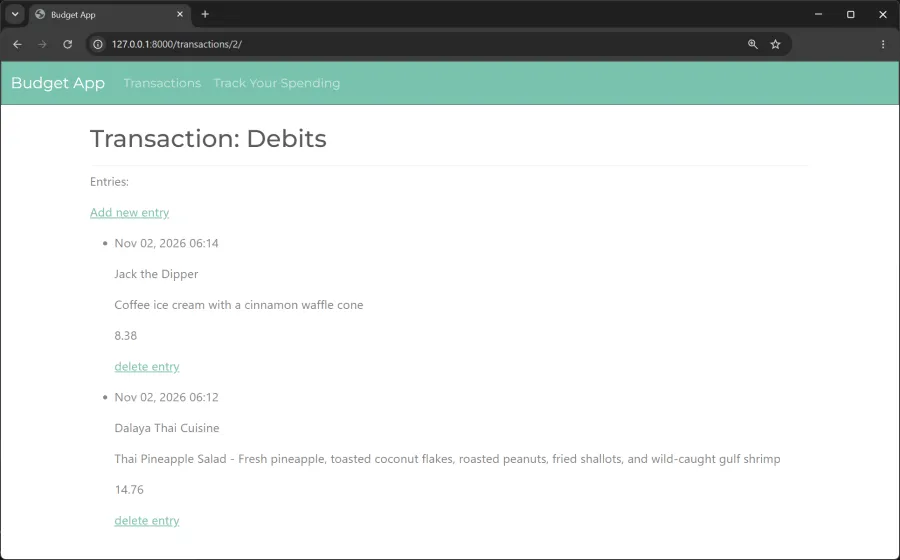
delete_entry(). This function should get a request and the entry_id and then return a redirect to the transaction URL pattern using the reverse function. - c. Next, edit the transaction template (transaction.html) to include a hyperlink, allowing the user to delete an entry of their choosing.
- a. Append the urls.py file (budget_app\urls.py) to add an additional URL pattern for deleting an entry. This pattern should send requests to the view function,
-
(20 points) Style the base.html and index.html pages using django-bootstrap5:
- a. Add django_bootstrap5 to the settings.py file and save the bootstrap.css file in the static folder.
- b. Follow the steps listed in the “Applying Bootstrap” & “Bootswatch Themes” course notebook pages to modify the base.html file. Load the Bootstrap styles, style the navigation bar using the Minty theme from Bootswatch, and add the page header template tags.
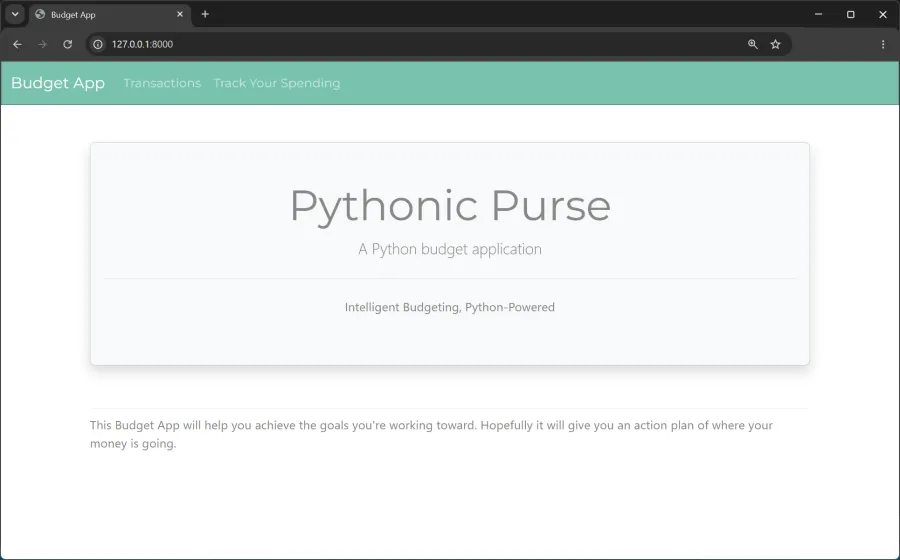
- c. Add the jumbotron element to index.html titled, “Pythonic Purse”.
- Generative artificial intelligence tools (ChatGPT, Claude, Copilot, etc.) are not allowed to be used on projects. The project code should directly reflect and relate to the material covered in our course notebook.
- Submission Instructions: The project will be due on Wednesday, December 2 by 11:59p. Zip/Compress the project folder and submit to Canvas.
The index home page
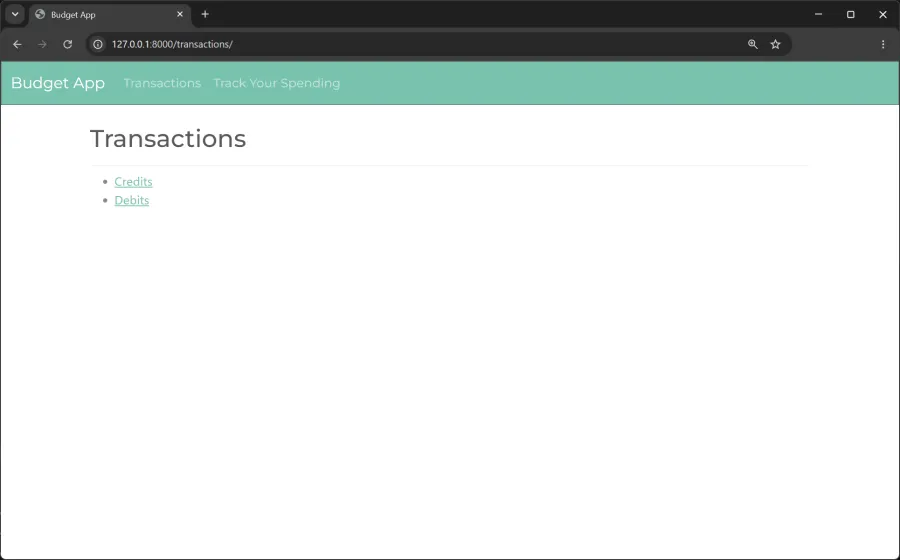
The transactions page
The transaction page
The new_entry page
The visuals page